
Go to ASUS > WAN > Internet Connection
Under WAN DNS Setting, tick No option for Connect to DNS Server automatically.
Enter DNS of your choice, we used 8.8.8.8 and 8.8.4.4 (Google DNS), and then hit Apply to save changes.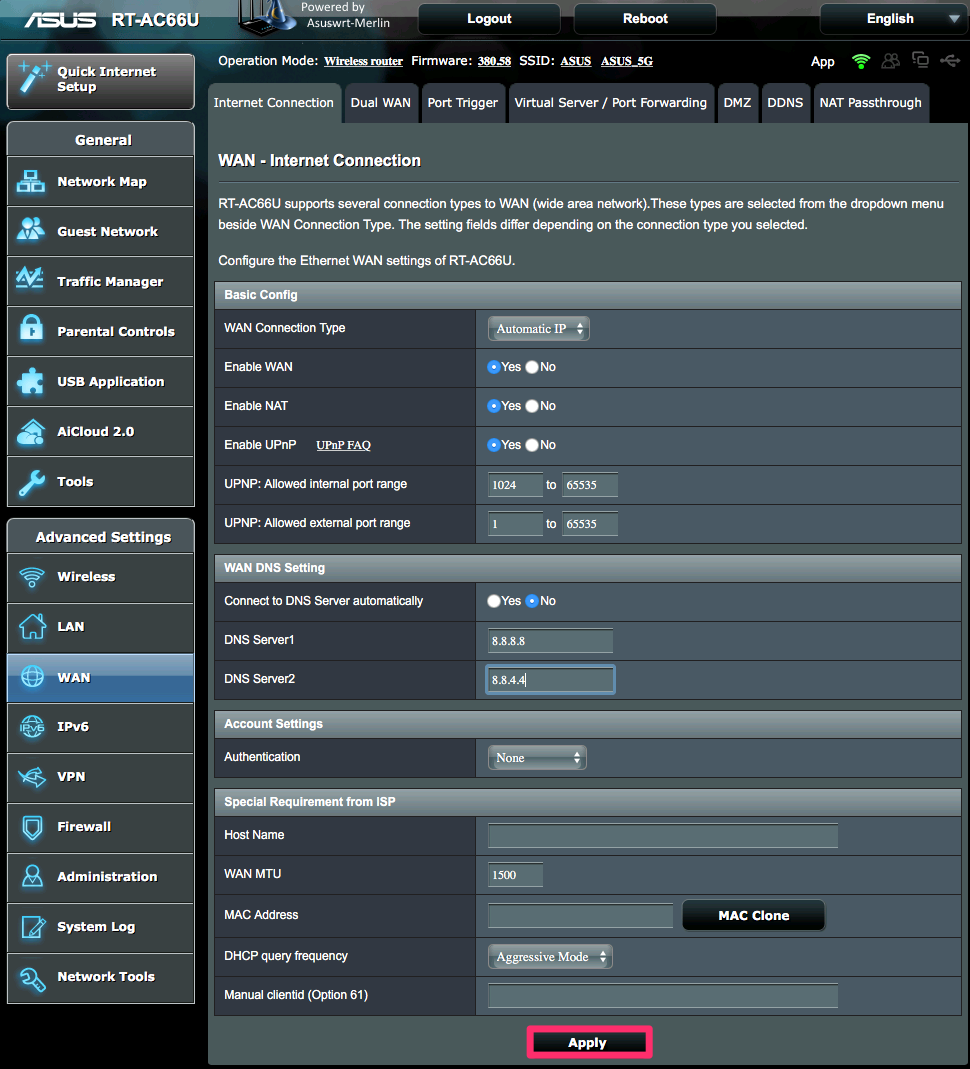
Go to ASUS > WAN > Internet Connection
Under WAN DNS Setting, tick No option for Connect to DNS Server automatically.
Enter DNS of your choice, we used 8.8.8.8 and 8.8.4.4 (Google DNS), and then hit Apply to save changes.
STEP 1 Open Tomato web admin, and then navigate to "Basic > Network" section...
Changing DNS in Windows 10Firstly, open the Network and Sharing Centre by right-clicking on your network connections...
Changing DNS in DD-WRTTo manually configure your router with our DNS servers’ addresses, in DD_WRT: On the Setup tab...
Changing DNS in Windows 81. From the Windows 8 Start Menu, go to Desktop. Click or tap the Desktop tile. 2. From the...
Changing DNS on MAC OSXYou’ll need to first head into the System Preferences… Then click on the Network icon…...