
Each config works on one device, and you can hold up to three at a time per VPN username.
STEP 1:
Download and install the AmneziaWG client for Windows from github.com/amnezia-vpn/amneziawg-windows-client/releases. Pick the latest .exe under Assets and run it.
STEP 2:
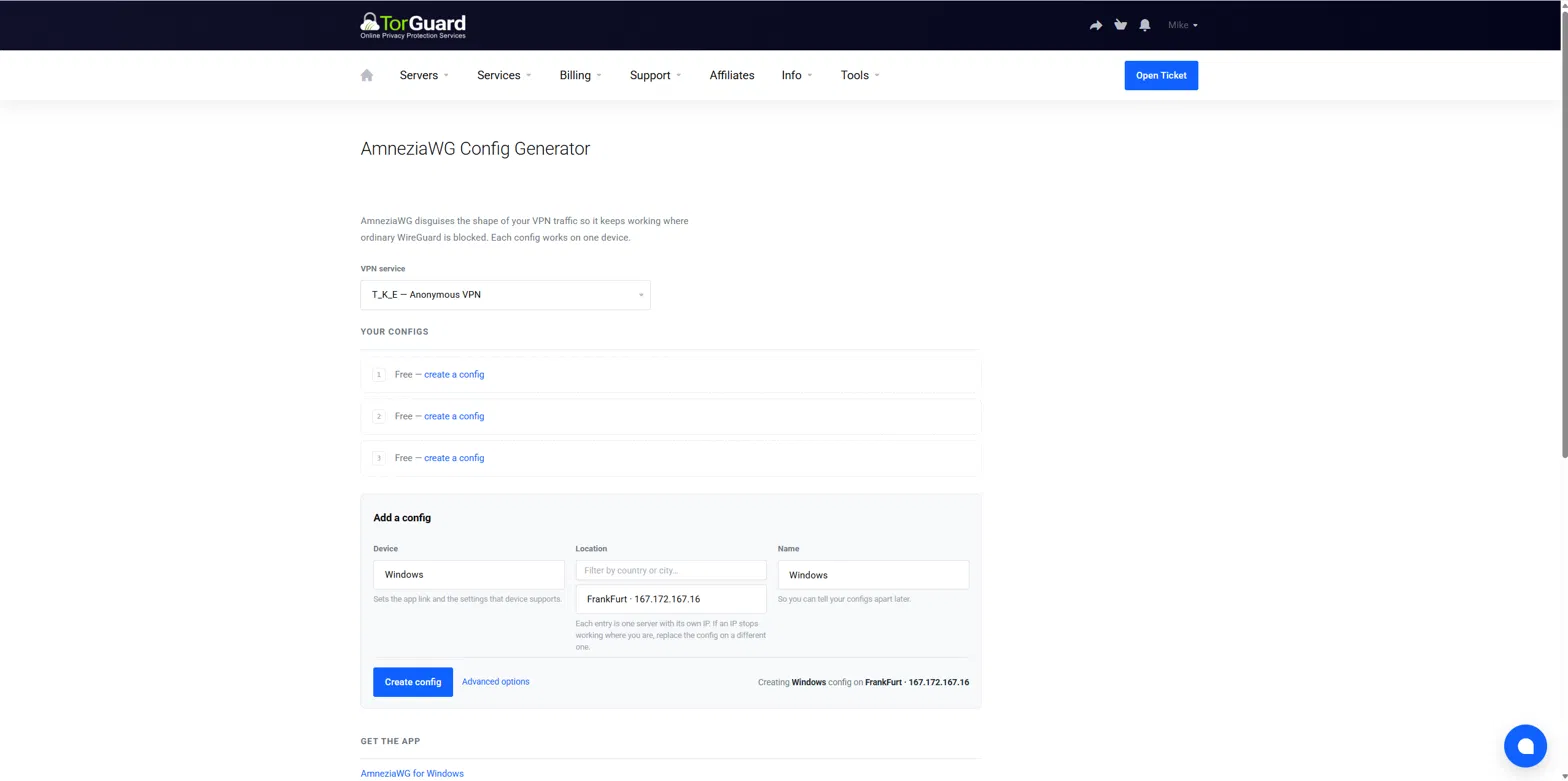
Sign in to the TorGuard client area and open the AmneziaWG config generator under Tools.
a) If you have more than one VPN service, choose the one you want under VPN service.
b) Set Device to Windows. This matters — it selects the settings your app understands.
c) Choose a Location. Each entry is a separate server with its own IP; type in the filter box to narrow the list.
d) Give it a Name so you can recognise it later, then click Create config.
STEP 3:
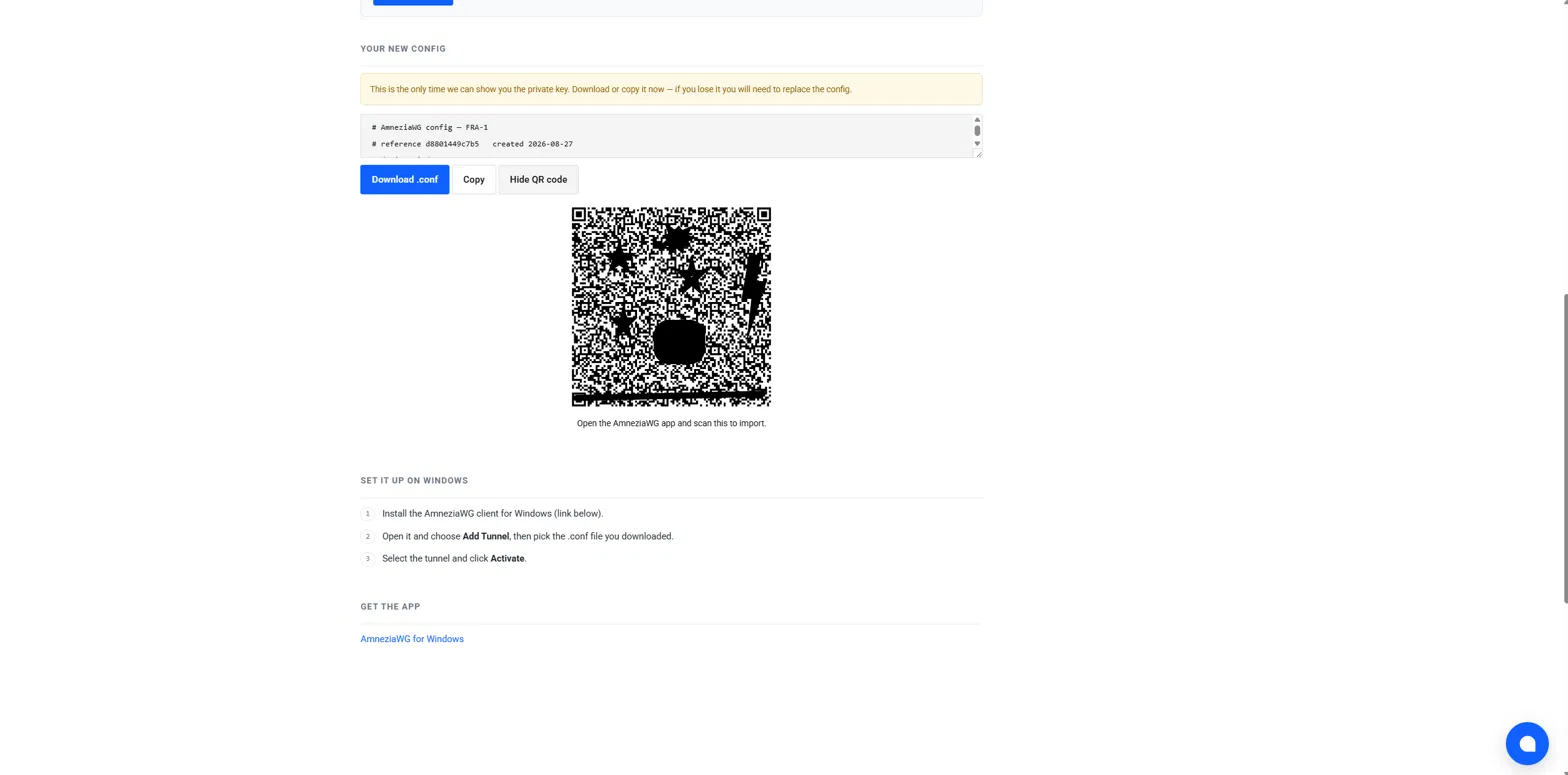
Your config appears below the form. Click Download .conf and save the file.
STEP 4:
a) Open the AmneziaWG client and click Add Tunnel at the bottom left.
b) Select the .conf file you just downloaded.
c) The tunnel appears in the list. Select it and click Activate.
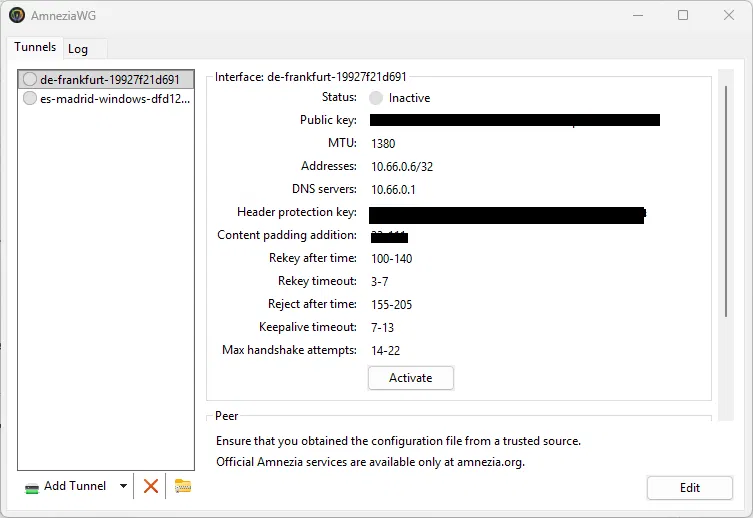
Status changes to Active and the Peer section starts showing transfer figures once traffic flows.
STEP 5:
Confirm the tunnel is carrying your traffic.
a) Browse to https://torguard.net/whats-my-ip.php
b) The IP Address line should show a TorGuard IP and state "Protected".
Good to know
• The private key is shown once. If you lose it, use Replace in the client area to issue a new config for that slot.
• One config runs on one device at a time. Running the same config on two devices will make both drop in and out.
• If a location stops connecting where you are, its IP may be blocked locally. Use Replace and pick a different IP — the client area shows the exit IP of every server.
• Check status in the client area shows whether each config has connected recently, which is the quickest way to tell a blocked server from a misconfigured app.
• If Windows reports Tunnel name is not valid, rename the file to something shorter — the client builds the tunnel name from the filename and allows at most 32 characters, using only letters, numbers and - _ = + .